Import your Granola notes
Connect Granola so the notes you take there come into Kepler as calls, choose which notes come in, and bring in past notes.
If you take meeting notes in Granola, connect it to Kepler and each note comes in as a call: Kepler writes its own minutes from Granola's transcript, adds the meeting to the people it was with, and suggests field updates and tasks, as it does for calls from the note taker. Granola works whether or not the note taker is turned on.
Before you connect
- You need a Granola Business or Enterprise plan. Granola only offers API keys on those plans.
- The connection is yours: each member connects their own Granola, and nobody can manage anyone else's.
- Your Kepler role must allow you to log calls and activities. If connecting fails for you, ask your administrator about your role.
Connect Granola
- Open Settings → Note taker. In the Granola section, select Connect.
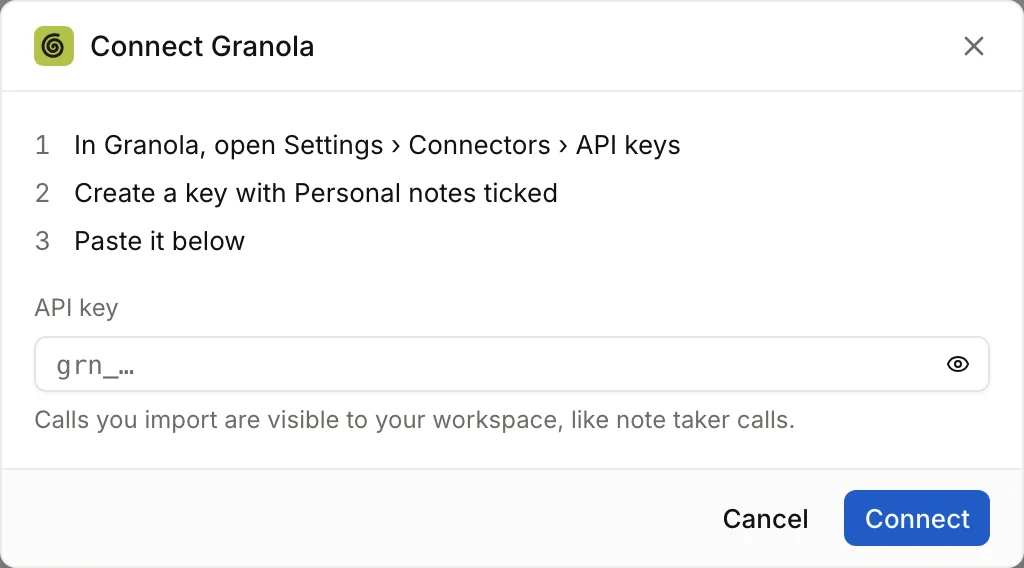
- In Granola, open Settings › Connectors › API keys and create a key with Personal notes ticked.
- Paste the key into API key and select Connect. Kepler checks the key with Granola before saving it.
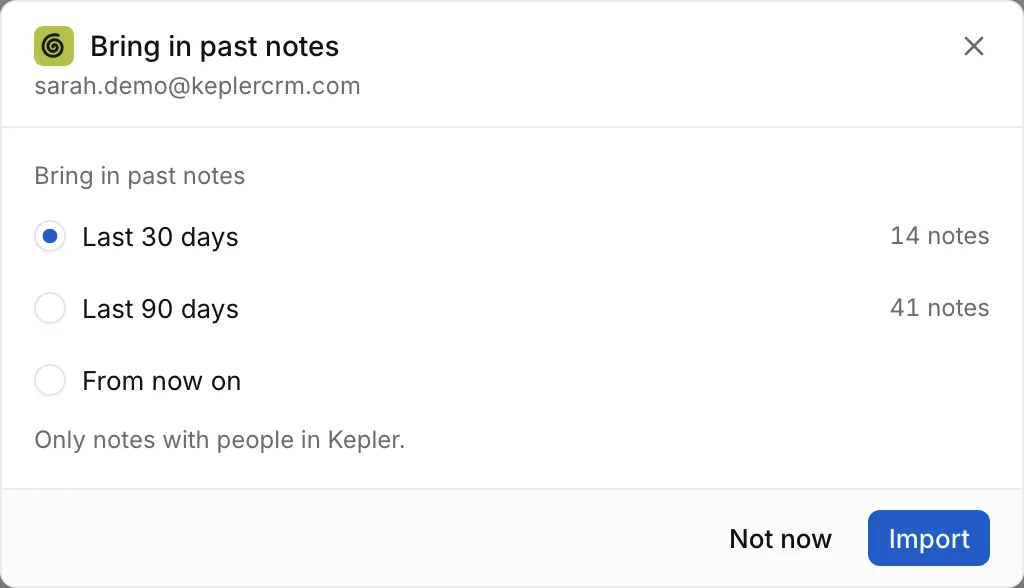
- Choose whether to Bring in past notes: Last 30 days, Last 90 days or From now on. The first two show how many notes they would bring in. Select Import, or Done for From now on.
The Granola section then shows Connected, the Granola account and when it last synced. New and edited notes usually arrive within a minute; Kepler also checks every 15 minutes. To check now, open Manage and select Sync now.
Choose which notes come in
Use Which notes in the Granola section:
| Option | What comes in |
|---|---|
| With people in Kepler (default) | Notes where someone on the meeting is a candidate or contact in Kepler, matched by email. Other notes are skipped and not stored. |
| All my notes | Every note. A call with nobody in Kepler asks who it was with (see below). |
| A folder | Only the notes in that Granola folder. |
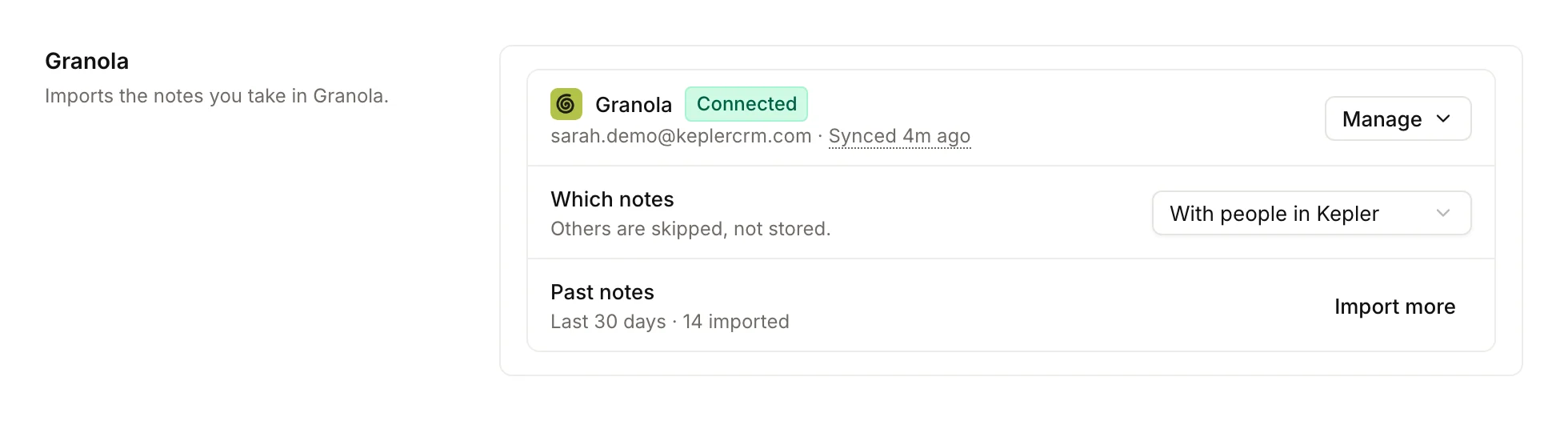
A change applies to notes from then on. Notes skipped earlier don't come in by themselves; use Import more under Past notes to fetch them. Notes with no transcript yet, and deleted notes, are skipped.
Bring in past notes
Without past notes, Kepler only brings in notes from when you connected. Under Past notes, select Bring in past notes (or Import more after a first import) and choose the last 30 or 90 days. Each run brings in up to 500 notes. The row shows progress, for example Bringing in the last 30 days · 3 of 12, and, if you're still on the page, Kepler tells you when they're in.
Find your Granola calls
Granola calls are listed under Calls with the Granola mark. To see only them, open Filter, choose Source and select Granola. A Granola call has no recording; its page has Minutes, Granola notes (Granola's own summary and what you typed) and Transcript tabs, and Open in Granola.
If Kepler's note taker was in the same meeting, you get one call, not two. Granola's summary and notes are added to the note taker's call; if the note taker wasn't let in or couldn't record, Granola's transcript is used instead.
Who was this call with?
When a Granola call matches nobody in Kepler, the call and To review ask Who was this call with? Select Link to link it to a candidate, contact, company or job, or Not a client call. Calls from a past-notes import that need a person are grouped into one card with Review. Meetings with only your own team aren't asked about.
Who can see Granola calls
Calls you import are visible to your workspace, like note taker calls. What you typed in Granola, on the Granola notes tab, is shown only to you.
Change the key or disconnect
- To use a new key, open Manage, select Change key, paste it and select Save key.
- To disconnect, open Manage, select Disconnect, then confirm Disconnect. Calls already imported stay in Kepler; Kepler deletes the stored key and stops syncing.
If notes stop coming in
- Not syncing with Granola refused the key means the key was revoked or expired. Select Reconnect and paste a new key; Kepler catches up from where syncing stopped. Kepler also sends you a Granola stopped syncing notification.
- Granola didn't accept this key. means the key is wrong or your Granola plan has no API access. This key can't read your notes. means the key was created without Personal notes ticked.
- Check Which notes: with With people in Kepler, a meeting with nobody in Kepler is skipped.
- A call that shows Granola sent no transcript for this note. came in without a transcript; Kepler can't write minutes for it.
For anything else, use Contact support in the Help panel or email support@keplercrm.com. Never send your API key.